Creating and Managing Saved Replies — Shortcuts, Folders, Visibility, and Post-Send Actions
How to create and manage frequently used replies as saved replies (macros): where to find the management screen, setting the title, shortcut, folder, and visibility (team-wide or personal), writing the body and using variables, post-send actions (tags, assignee, close, snooze), inserting them in the composer with /, sorting, duplicating, and deleting in the list, CSV import and export, and plan and permissions. Keywords: saved replies, macros, shortcuts, reply templates, canned responses, CSV import.
Updated
Saved replies are a feature that lets you store frequently sent replies and pull them out directly from the conversation composer. You can add tags or close the conversation at the same time as sending the reply. Available from the Starter plan.
Creating
Where do I create and manage saved replies?
Create and edit them under Settings > Conversations > Saved replies. You can also reach the same screen by clicking the Saved replies button in the inbox composer and then Manage. To save the reply you are currently writing right away, use Save current content on the same button and just enter a title — you can add shortcuts, folders, and actions later on the management screen.
What do I enter for a new reply?
Click New reply on the management screen, fill in the fields below, and save (⌘/Ctrl+Enter to save, Esc to return to the list).
| Field | Description |
|---|---|
| Title (required) | The name you search for in the list and composer. Up to 100 characters. |
| Shortcut | A short name you type after / in the composer (see below). |
| Folder | A name for grouping, such as "Billing". Up to 50 characters; folders you have already used can be selected. |
| Visibility | Whole team or Only me (default is whole team). |
| Body (required) | The text to send to the customer. Up to 4,000 characters; variables can be included. |
| After-send actions | Settings that change tags, assignee, or status when the reply is sent (see below). |
How do I set a shortcut?
Use letters, numbers, _, or - with no spaces, up to 40 characters. Korean is also allowed (e.g., 환불). Each shortcut can only be used once within a workspace, so if it is already in use you will see "A reply with the same shortcut already exists." A shortcut can be left blank — in that case the reply is found by its title.
What is the difference between 'Whole team' and 'Only me' visibility?
Whole team replies can be viewed, used, and edited by all team members. Only me replies appear only in the creator's list and composer and are not visible to other team members at all. Only the creator can edit or delete them. Only-me replies show a Personal badge in the list.
Can I include variables such as the customer's name?
Yes. If you include the variables below in the body, they are replaced with actual values the moment the reply is loaded into the composer, so you can review and edit the result before sending. Clicking a variable chip in the editor inserts it at the cursor, and Preview shows the reply with sample values filled in.
| Variable | Replaced with |
|---|---|
{{고객명}} | Customer name ("customer" if unknown) |
{{이메일}} | Customer email |
{{담당자}} | Name of the agent (you) sending the reply |
{{회사}} | Workspace name |
English variable names ({{customer}} · {{email}} · {{agent}} · {{company}}) are replaced in the same way. Any other variables (for example, {{주문번호}}) are not replaced and remain as written, so fill them in manually before sending.
After-send actions
Can I change tags, assignee, and status while sending a reply?
Yes. Set them under After-send actions in the editor, and they are processed together with the reply when it is sent. Replies with actions show an Action badge in the list.
- Add tags on send — Adds the selected conversation tags to the conversation (tags already attached stay). If you have not created any conversation tags, you cannot select any.
- If unassigned, assign to me — Sets you as the assignee only when there is no assignee.
- Status after sending — One of Leave as is · Close · Snooze. Closing is handled the same way as closing manually.
Actions run only when the reply is sent from the Reply tab. If you send from the Internal note tab, only the text is inserted and no actions run.
How many hours is 'Snooze after sending'?
The default is 24 hours. When you choose Snooze as the Status after sending, you can change the Snooze duration to any value from 1 to 4,320 hours (180 days). For the rules on how snoozing ends, see the document Conversation status management — Snooze, Close, and satisfaction ratings.
Using from the composer
How do I insert a saved reply while writing a reply?
Type / in the composer, then enter a shortcut or title. The saved replies appear at the top of the menu in the form /shortcut · title; selecting one inserts the sentence with variables replaced at the cursor. This works in both the reply and internal note fields. You can freely edit the inserted text before sending.
What can I do with the Saved replies button in the composer?
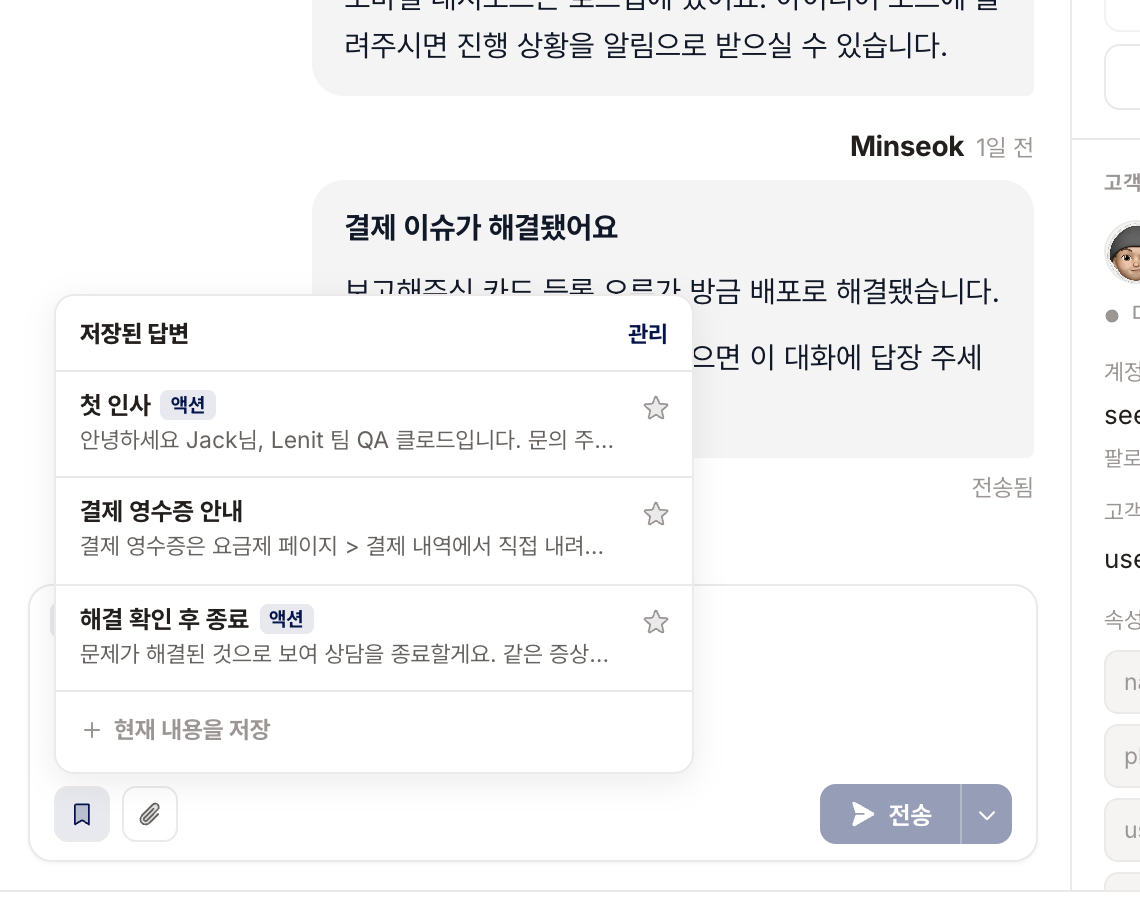
- Search by title or shortcut and select one to insert.
- Mark replies as favorites with the star so they appear at the top. Favorites are personal to each user.
- Save current content — Saves the content currently in the composer as a whole-team saved reply.
- Manage — Opens the Settings > Conversations > Saved replies screen.
Organizing the list
How do I find and sort replies when there are many?
Narrow the list with the search bar at the top of the management screen (title, shortcut, content), the folder chips, and the All · Team · Mine filter. Sorting options are Most used (default — favorites first) · Recently used · Recently edited · Name. Each row shows the usage count and the date last used; the usage count increases when you send the reply from the Reply tab.
How do I duplicate or delete replies?
Click Duplicate on a row to open a new reply form with the same content — "(copy)" is added to the end of the title, and the shortcut is cleared so it does not conflict. Delete removes the reply after a confirmation dialog and cannot be undone. Deleting a reply does not affect replies that have already been sent.
Moving via CSV
Can I import saved replies from another tool as CSV?
Yes. On the management screen, use Import CSV and upload a CSV with column names in the first row. Columns for title, shortcut, folder, body, and visibility are matched automatically (English headers like title and body, or Korean headers like 제목 and 본문, both work). If the visibility cell is 나만 or personal, the reply is imported as Only me; otherwise it is imported as Whole team. Use Download sample CSV to see the expected format first.
Rows with a blank title or body, or with a duplicate shortcut, are skipped. The result is shown as N imported · M skipped, along with the reasons for skipping. Imported replies have no after-send actions, so add them individually if needed.
Can I export my replies to CSV?
Yes. Click Export CSV to download the list as currently displayed on screen (with any search or filters applied) in five columns: title, shortcut, folder, body, and visibility. The file is saved so that Korean text is not garbled when opened in Excel. After-send actions are not included in the file.
Plans and permissions
Which plan is required, and who can use it?
Available from the Starter plan (including during the free trial). On the free plan, the management screen is locked with a notice that saved replies require the Starter plan, and the Saved replies button in the composer opens the plan upgrade dialog. Replies you have already created are not deleted and are kept, so you can use them again after subscribing.
Only owners and administrators (team members with a seat) can create and edit replies. Read-only members cannot create or edit them.
Frequently asked questions
I typed the shortcut but no reply appears.
First, check that you typed the shortcut exactly. Second, make sure the reply is not an Only me reply created by another team member — Only me replies are visible only to their creator. Third, if you are on the free plan, saved replies cannot be loaded.
I set an action, but the tag or close did not run.
Check whether you sent from the Internal note tab. Actions run only when sending from the Reply tab. If unassigned, assign to me does not change the assignee if one is already set.
If I edit a saved reply, does a reply I already sent change too?
No. A saved reply inserts a copy of its text when loaded, so editing or deleting it does not change replies that have already been sent.